
 Skills are free to access
 Build open, non-leading exit interview questions that reveal what departing employees can teach your organisation. The Exit Interview Question Builder helps HR teams create a reusable set of questions for interviews or surveys, mapped to the themes they genuinely need to understand. It is designed to improve the quality of future insight, not to interpret an individual’s real responses, while staying aligned with your organisation’s offboarding process, confidentiality expectations and preferred way of gathering feedback.
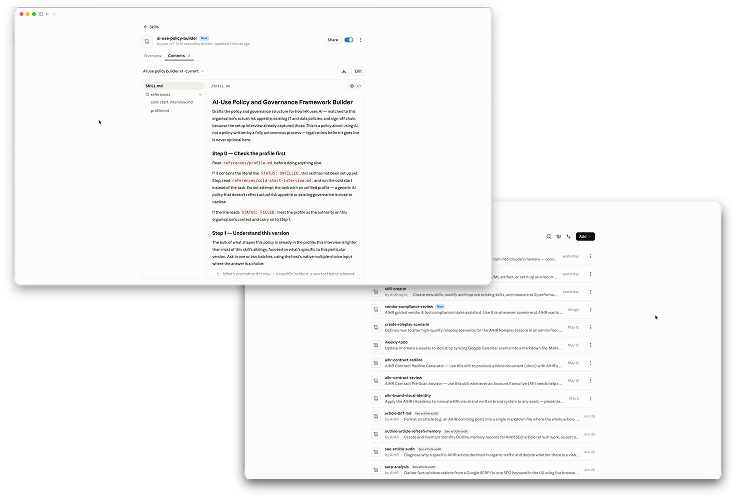
How to install and use this skill
- Download the .skill file for the skill you want to use.
- In Claude: go to Customize → Skills, click +, then Create skill and Upload a skill. Select the .skill file and switch the new skill on.
- In ChatGPT: open Skills, select Create, then Upload from your computer, and choose the .skill file.
- Run the cold start before using the skill for real work. The first time, it will ask a short set of questions about your organisation, processes, preferences, and guardrails. Answer what you can; it will use clearly stated defaults for anything you do not know. At the end, download the updated file and use Update Skill to replace the installed version. If something changes later, open the skill’s
references/profile.md, edit the relevant answer, save it, and use Update Skill again — there is no need to complete the full interview again.
If you use Microsoft Copilot: create one focused Copilot agent per skill rather than uploading the package. In Copilot, go to Agents & Skills → New agent, then copy the skill’s SKILL.md into the agent’s Instructions field.